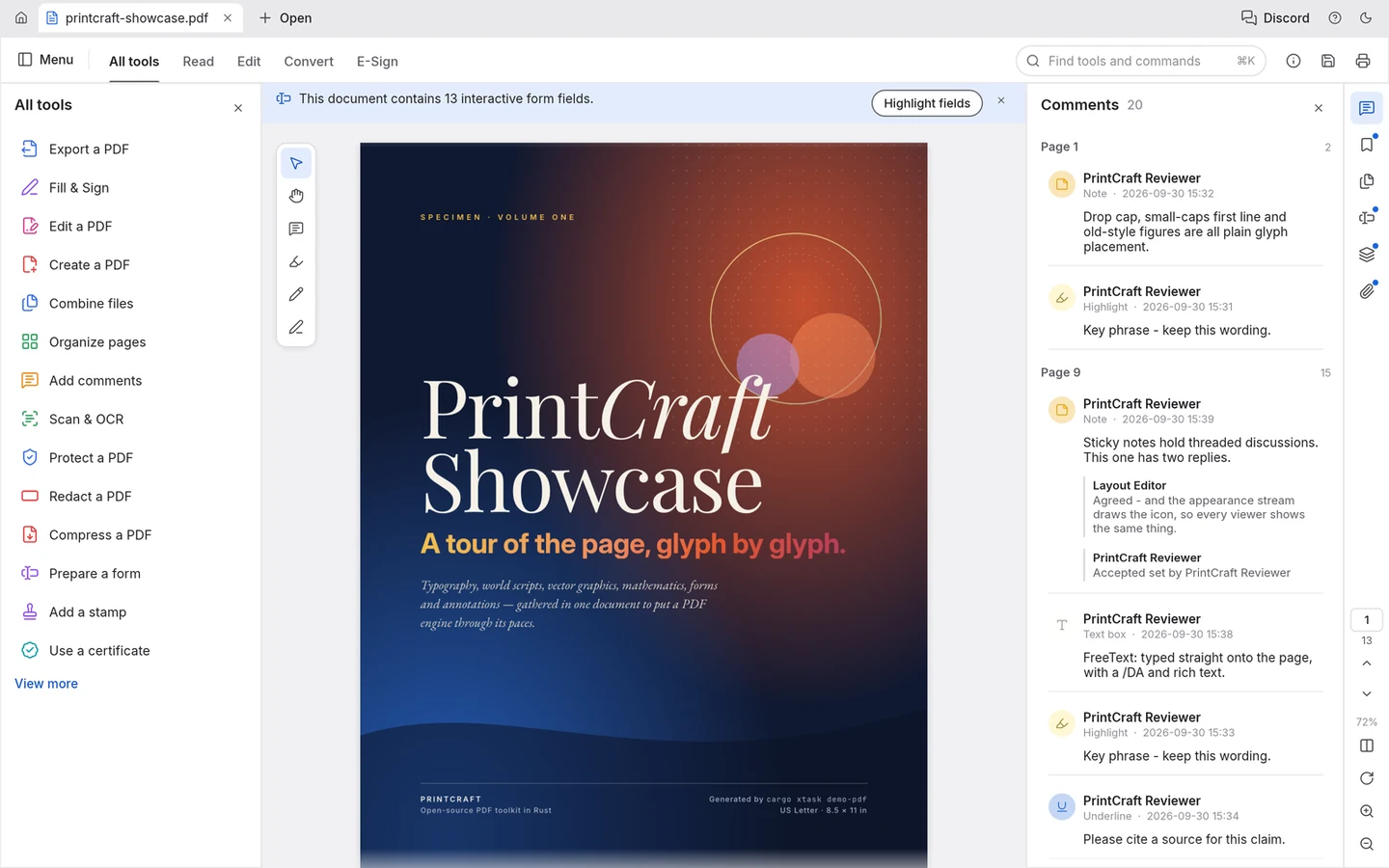
Review a document, rearrange its pages, or combine several attachments with PdfCraft online. Open a local PDF in your browser, make your changes, and download the result without creating an account.
Open a local PDF or try the sample to explore the workspace.
PdfCraft v0.6.0 · Files are processed in your browser. Download your changes before leaving. Desktop recommended.
What you can do with PdfCraft online
PdfCraft online brings an open-source PDF workspace to your browser. Use it for reading, annotation, and page organization rather than installing a desktop application for each small task.
Choose the PdfCraft online editor when your result should remain a document: a reviewed draft, a reordered report, or a combined attachment. Annotations record feedback on the content; page tools change its structure. For a standalone picture or a layered graphic, follow the PhotoCraft link below.
PdfCraft tools for reading and page editing
Read documents and add comments
Use PdfCraft to search for a word or phrase, follow existing bookmarks, and move through page thumbnails. These navigation tools help you locate a section in a long report without scrolling through every page.
PdfCraft comments let you mark a passage and keep replies beside the relevant content. Highlight important wording, add a correction request, or explain a question about a chart. Annotation leaves feedback on the document; it does not rewrite the original paragraph.
The PdfCraft page grid presents a document as thumbnails. Select the pages you want to reorder, rotate, insert, or delete. This is useful for a sideways scan, a repeated attachment, or a cover that belongs at the beginning.
Check the actual page contents when making a selection. A printed page number can differ from its position in the file, especially when a report includes an unnumbered cover or contents page.
Merge PDFs or split a document
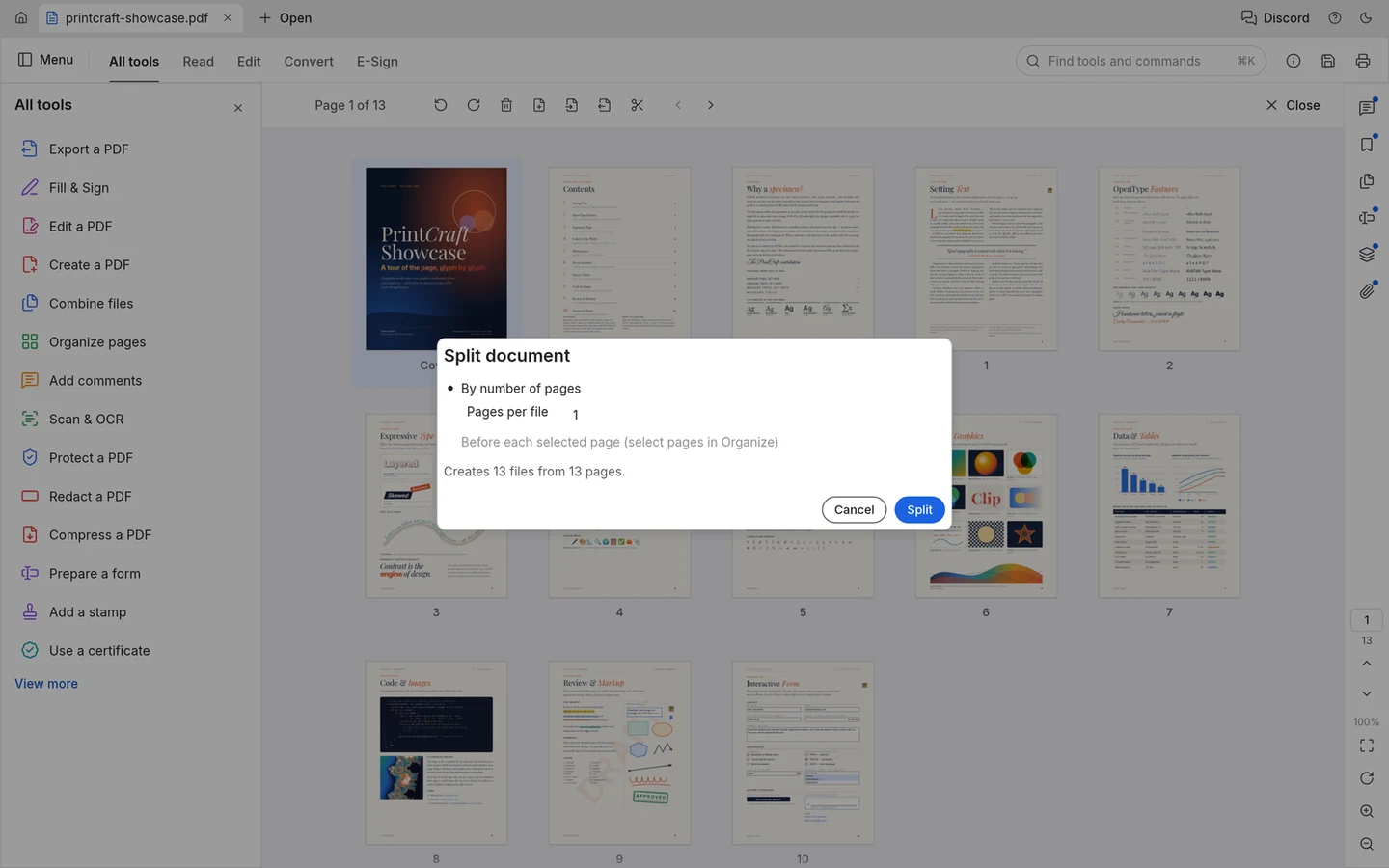
PdfCraft can merge several documents, extract a selected range, or split a document into separate files. Merge when the recipient needs one attachment. Extract when you need a smaller document containing several related pages. Split when each part should be downloaded separately.
The PdfCraft online screenshot shows a split configured to create one file per page. Multiple outputs may trigger a browser permission request for additional downloads; allow them if you intended to save the whole batch.
Choose a PDF below the workspace’s 100 MB file limit. A shorter document is easier to try when you are learning the PdfCraft controls; the size limit is an input restriction, not a guarantee that every complex file will run smoothly.
File format
PdfCraft checks that the selected file contains a PDF header. Renaming a photo or a Word document with a .pdf extension does not convert it. If your material is another format, create a genuine PDF before opening it in this workspace.
Browser requirements
Allow time and browser memory for a large document. PdfCraft online uses your device for processing. If loading fails, retry the workspace and check browser graphics support before choosing a smaller file to test.
How to use the PdfCraft online editor
01
Open a PDF
Select “Edit PDF online” to load PdfCraft, then choose “Open PDF” and pick a file from your device. “Try a sample PDF” lets you explore the workspace before opening your own material.
The editor loads on demand. If startup takes a moment, wait for the workspace controls before opening a file.
02
Make your changes
In PdfCraft, choose an operation that matches the change you need: comments for feedback, page organization for order and orientation, or merge and split tools for changing which pages belong together.
Before merging, establish the source order. For extraction, identify the first and last page of the range before applying the operation.
03
Check the result
Review the changed area before saving. Check the selected range, the direction of rotated scans, and where your annotations appear. For a merge, look at the boundary between the original documents.
PdfCraft online works on the opened document. Keep your source file available so you can compare it with the result if something looks different.
04
Save and download
Choose File → Save or Save As to download your changes. Check your browser’s download list for the output rather than assuming that the open workspace is a permanent saved copy.
Reopen the downloaded document to verify the result. PdfCraft online does not provide cloud recovery for unsaved work, so finish downloading before closing the tab.
Everyday PDF tasks
Prepare an application
Combine forms and scanned attachments into one PDF, arranged in submission order.
Review a draft
Highlight key passages and add comments, then download the file to share your feedback.
Create a meeting handout
Extract the pages you need from a longer document and save them as a separate PDF.
About the project
ArtCraft maintains PdfCraft, with desktop releases and a WebAssembly browser build. This site independently hosts the PdfCraft online editor. The feature screenshots come from the official v0.6.0 repository and show the tools described above.
The project is in alpha. Use the feature guide for examples, the release notes for version changes, and the capability assessment for known gaps in existing-text editing, OCR, conversion, and encrypted output.
Use a browser with WebGL2 support. A desktop browser is recommended because the full PdfCraft workspace includes document tools, page navigation, and comment panels. You can expand the editor or use fullscreen for more room. If startup fails, check graphics support and try reloading; changing the document will not fix an unsupported browser.
Is PdfCraft open source?
Yes. PdfCraft source code and official releases are available on GitHub under MIT OR Apache-2.0. This site lets you open the PdfCraft online editor without an account. The repository is also the place to inspect the implementation and find the license files if you plan to redistribute the software.
Can I edit existing text or scanned pages?
PdfCraft has text-editing and OCR work, but these capabilities remain incomplete. A scanned page contains an image, while a text-based document may contain selectable characters. Do not expect PdfCraft online to turn every scan into accurate editable text. For substantial rewriting, use the source document when available; annotations are better suited to requesting changes.
Will saving preserve all document features?
Not always. PdfCraft may have compatibility gaps involving embedded fonts, forms, encryption, and annotations. After using PdfCraft online, check the downloaded result in the reader where it will be used. Focus on the features your document depends on, such as interactive fields or a particular typeface, rather than checking only that the file opens.
Does PdfCraft online upload my documents?
No. The PdfCraft online editor processes selected documents locally in your browser; this site does not upload them to a document server. Saving downloads a file to your device. There is no cloud backup or shared review copy. Download your changes before leaving, because an unsaved workspace cannot be restored after the page is closed.
Where can I follow PdfCraft updates or report a bug?
Follow storytold/pdfcraft on GitHub for official PdfCraft releases and development updates. Use its issue tracker for software bugs. If you encounter a problem in the PdfCraft online editor, include the operation you tried, your browser, and the editor version shown beneath the workspace. A clear reproduction sequence is more useful than a screenshot alone; avoid posting private documents in public issues.
Start your next task with PdfCraft online
Open the PdfCraft online editor with a local document or sample. Choose one change to make, review it, and download the finished copy.