Photo editing tutorials · v0.3.0
How to Open a PSD File Without Photoshop
Open a PSD file in your browser, check its layers, and save an editable copy or export PNG. Learn what to check when a Photoshop file looks different.
Someone sends you a design, but the attachment ends in .psd and you do not have Photoshop. Before you buy software or ask for a different file, decide what you need: a quick look at the artwork, a small edit, or a finished image you can share. Those are different jobs, and they do not all require the same level of file compatibility.
Here is how to open a PSD file without Photoshop using the browser image editor on our homepage: start the editor, click Open image, and choose the PSD. Check the canvas and Layers panel before editing. You can then save a working project or download a PNG of the visible result.
PhotoCraft is an early version, so a complex third-party PSD may look different or fail to open. The steps below help you make that judgment before you overwrite anything. This guide describes PhotoCraft v0.3.0 on a desktop browser, with the editor's English menu labels.
What is a PSD file, and what do you need from it?
PSD is the project format associated with Adobe Photoshop. Unlike a typical JPG or PNG, a PSD can contain separate layers, editable text, masks, and other editing information. Think of it as the working document behind a finished picture. The extra structure is useful when you want to move a title without moving the background or change one element without rebuilding the design.
However, the extension alone does not tell you how editable the file is. A PSD may contain many layers, or it may contain just one flattened image. Some documents also depend on fonts or effects that another editor will render differently. Opening a file successfully is the first check, not proof that every feature survived.
If you only need a preview, ask the sender for a PNG alongside the PSD. It gives you a useful visual reference. If you need to change a title, ask whether the title is still a text layer. If the job requires an exact production match, keep the sender involved and compare your result with their reference before delivering it.
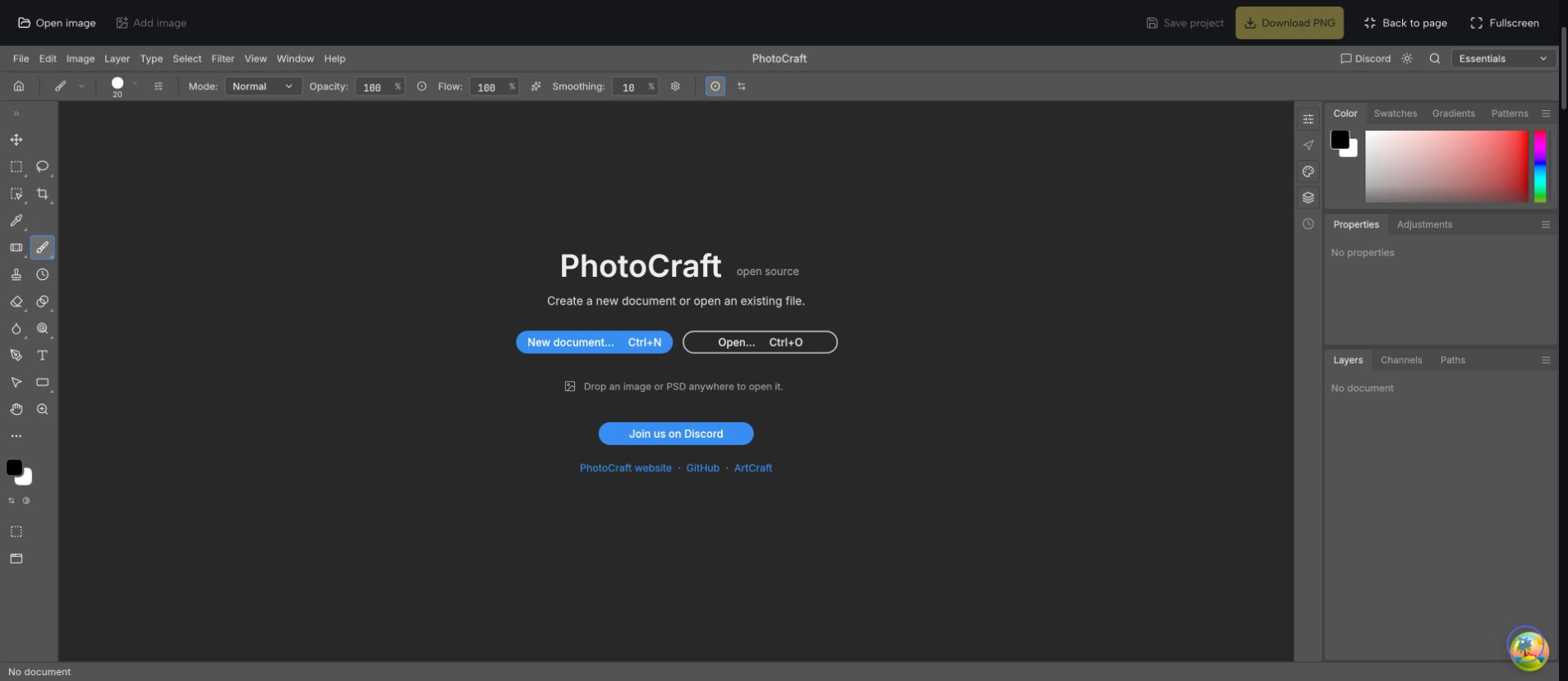
The PhotoCraft workspace: document controls above, tools on the left, and the Layers panel on the right.
How to open a PSD file without Photoshop in your browser
1. Keep the original file untouched
Download the attachment to a folder you can find again. Leave its original name and extension intact, and make a copy before experimenting. Renaming .psd to .png does not convert it into a picture; the file's contents remain in the original format.
For unfamiliar files, start with a small document when possible. A large PSD can contain much more information than its preview suggests. Closing unnecessary browser tabs may help on a limited computer, but there is no promise that every large or complex document will fit in your device's memory.
2. Start the homepage editor
Open the PhotoCraft homepage and click Start editor in the editing area. Wait for the workspace to appear. Use Expand editor if the embedded view is too small to read layer names or inspect the artwork. You are still using the same document inside the homepage tool.
Click Open image in the toolbar above the editor, then select the .psd file from your computer. The button name also covers opening a saved project. Give the document time to load before clicking other commands. When it is ready, look for the artwork on the canvas and the document tab above it.
3. Open it as a document, not an extra image
Use Open image for the PSD you want to inspect. Add image has a different purpose: it adds a picture to the active document as a new layer. These actions are not interchangeable when your goal is to examine an existing project's layer structure.
If you are comparing two files, keep track of which document tab is active. Saving or exporting works on the current document. A second open tab is not automatically included in that download, and saving one document does not save changes in every other tab.
Check the layers before you change anything
First compare the canvas with the sender's reference image, if you have one. Look at the overall size, title placement, colors, transparency, and important effects. A file that opens with a different-looking heading may have a font substitution rather than missing words. A file that loses an effect may still contain the underlying layer, but that does not make the rendered result equivalent.
Next, inspect the Layers panel on the right. Select a layer and briefly toggle its visibility to identify what it contributes. Restore the visibility afterward. This is a simple way to understand a document without immediately moving or deleting something important.
If the document contains text, look for a text layer rather than assuming every visible word is editable. A title baked into a pixel layer cannot be rewritten with the Text tool. If you do have a text layer, make a small change on your copy, commit the edit, and check the resulting appearance. Font availability and text layout should be checked again after reopening the saved project.
Save an editable project or export a finished PNG
Choose the download according to what happens next. You may need both a working document and a delivery image; one is not a substitute for the other.
| What you need | Use this action | What to remember |
|---|---|---|
| Continue editing later | Save project | Downloads a PSD working copy; reopen it and check the layers. |
| Share the visible artwork | Download PNG | Downloads a rendered image, without the editable layer structure. |
| Preserve the sender's original | Keep the original separately | A newly saved project is a separate result, not a compatibility guarantee. |
Click Save project to download a PSD. Give the new file a name that makes it easy to distinguish from the original, such as invitation-edited.psd. Reopen the saved copy through Open image and inspect the layers and artwork. This extra check is especially useful before you close the editing session or send the file to someone else.
Click Download PNG when you want a picture for sharing. Open the downloaded image in an image viewer and check the dimensions, visible layers, and text. A PNG export reflects the rendered result; it cannot preserve an editable title or recover a layer that was hidden when you exported.
PNG export does not clear the project's unsaved state. Save the PSD as well if you need to keep your editing structure. The site has reminders before refreshing, leaving the page, or switching language with unsaved work, but it does not provide cloud saving or automatic draft recovery. Keep your downloaded files somewhere you can find them.
What if the PSD will not open or looks different?
The artwork is missing an effect or looks unlike the preview
Stop editing the original and compare with a reference. Complex Photoshop features are not guaranteed to reproduce in this version of PhotoCraft. Ask the sender for a simplified PSD or a PNG preview. If exact rendering is essential, use an editor that has been verified with that particular document rather than treating a successful download as proof of compatibility.
The file has only one layer
It may have been flattened before it was saved, or the import may not have preserved the structure you expected. Check with the sender. Converting a PNG to PSD, or changing a filename extension, cannot recreate the original text objects and layers. The format can store layers, but it cannot invent information that is no longer there.
The text has changed appearance
Check whether the original font is available and compare line breaks, spacing, and alignment. Even when the words remain editable, their layout may differ. If you only need to add a new caption, follow our guide to adding text to a photo; replacing an existing design's typography requires more careful comparison.
The browser becomes slow or unresponsive
Avoid repeatedly importing the same file while it is still loading. Try a smaller, simplified copy or a fresh session after saving any other work. File size alone does not predict how much memory a document needs. Large canvases and many layers can be demanding even when the file seems reasonably small.
The useful test is straightforward: can you open the document, identify the layers you need, make your change, and reopen the saved result without surprises? Try the PSD workflow in the homepage editor, keep the original file, and verify the output before handing it off.